What is a project?
In Marvin, a project is a bigger piece of work: something you usually work on over several days, weeks or months. Writing a report, planning a trip or moving house are all projects.
A project is made up of tasks. Ideally each task is a single step you can sit down and finish in one work session, like "Draft the introduction" or "Book the flights". If a task feels too big to start, that's often a sign it should be a project with smaller tasks inside it.
Projects live in your Master List, inside your categories. You can also put projects inside other projects.
Recognizing projects
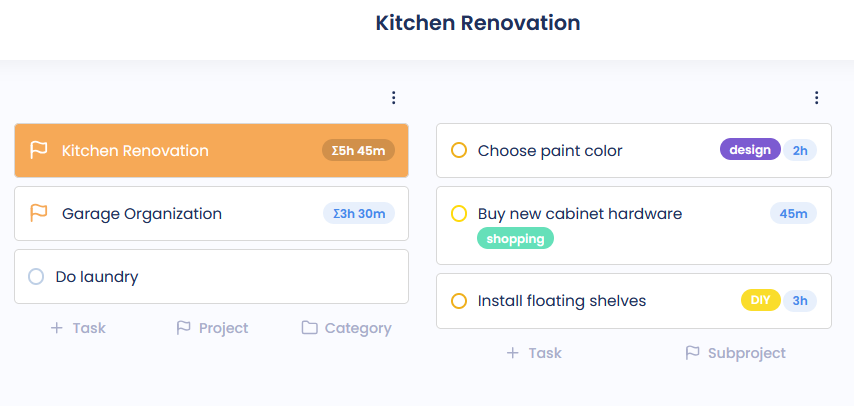
Projects have a flag icon, so you can tell them apart from tasks at a glance.
You can give a project its own icon or emoji instead. Custom icons on projects only show if you turn them on: open the Master List, click Configure View at the top right, and set Show Custom Icons On to Categories & Projects or Just Projects. See Custom icons not showing on projects.
Projects work a lot like tasks
Most of what you can do with a task, you can also do with a project. You can give projects stars with Importance Levels, add labels, set dates, and use the other attributes you use on tasks. This helps you see at a glance which projects matter most and filter them in Smart Lists.
Don't work on too many projects at once
If you have a lot of projects, we really recommend the Most Important Projects (MIPs) feature. Having too many projects on the go at the same time can feel stressful. Having a few is nice, though, so you can switch between them when you need a change.
With MIPs, you give a crown to the projects you are currently focusing on finishing. You can set a limit on how many MIPs you can have, so you have to finish one (or take its crown away) before you crown another.
If you'd rather not use MIPs, you can mark your priority projects with stars instead.
For more ideas, see I have a lot of projects.
Keep your projects close at hand
Project Shortcuts show your projects above your Today list, so they are always one click away. You can choose what to show, for example your MIPs, hand-picked projects, or projects with upcoming deadlines. Click a shortcut to open the project, click its + to add a task, or drag a task onto it to move it there. See Project Shortcuts.
MIPs in the Skinny Sidebar: you can also add a MIP button to your Skinny Sidebar. In the Skinny Sidebar settings, add the Most Important Projects (MIPs) item. Clicking it lists your MIPs so you can jump straight to one from anywhere in Marvin. Use the settings icon in that list to choose whether projects open in the main view or full screen. Shift+click does the opposite.
Plan when you'll work on a project
Plan it for a week or month. With Planning Ahead, you can plan a project for a specific week, month or quarter, so you can see how much you're taking on and spread your projects out.
Give it a deadline. Add a deadline so you know when the project needs to be finished. See How to add a deadline to a project.
Hide it until it's time. Give a project a start date if you don't want to work on it before a certain day. It waits in the Backburner and comes back to your Master List on that date.
Set a review date. A review date brings the project back to your attention on a certain day, so you can check in on it and nothing falls through the cracks.
Put it on the backburner. Projects you aren't working on right now can go into the Backburner. They stay out of your way until you're ready for them.
Choose how you work on a project
There are two main ways to work on a project:
In the main view. Open the project in your Master List and work through its tasks there, alongside everything else.
Full screen. Open the project on its own screen to focus on it. This is great for outlining a project, adding tasks and putting them in order. See Project/Category fullscreen view.
Try both and see which one you like. Many people do their planning in full screen and their day-to-day work from their Today list.
Track your time on a project
With Time Targets, you can aim to spend a certain amount of time on a project each day, week or month, for example 5 hours a week on your novel. Marvin shows how close you are as you track time on the project's tasks. Time Targets need Time Tracking turned on.
Project notes
Every project can have a note. Use it for ideas, links, reference material or anything else you need while working on the project. See Task and project notes.
If you turn on Notebooks, a project can have many notes, organized into sections. And when you finish a project, its notes are kept, so you can still look back at them later.
Finishing a project
To mark a project done:
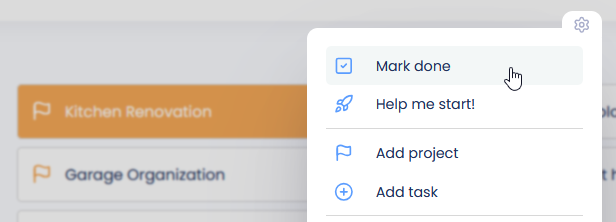
Hover over the project and click the Mark done button (click ... if you don't see it), or
Right-click the project and mark it done from the menu, or
Open the project and click the mark done button at the top.
A project can only be marked done once all its tasks are done. If the button is greyed out, something in the project is still open. Check:
Tasks and projects inside it, including ones in the Backburner
Recurring tasks inside the project don't stop you from marking it done.
See How to complete a project for more.
More you can do with projects
Sequential Projects: only show the next task in a project, so you aren't overwhelmed by the whole list.
Recurring Projects: projects that repeat, like a monthly report.