Overview
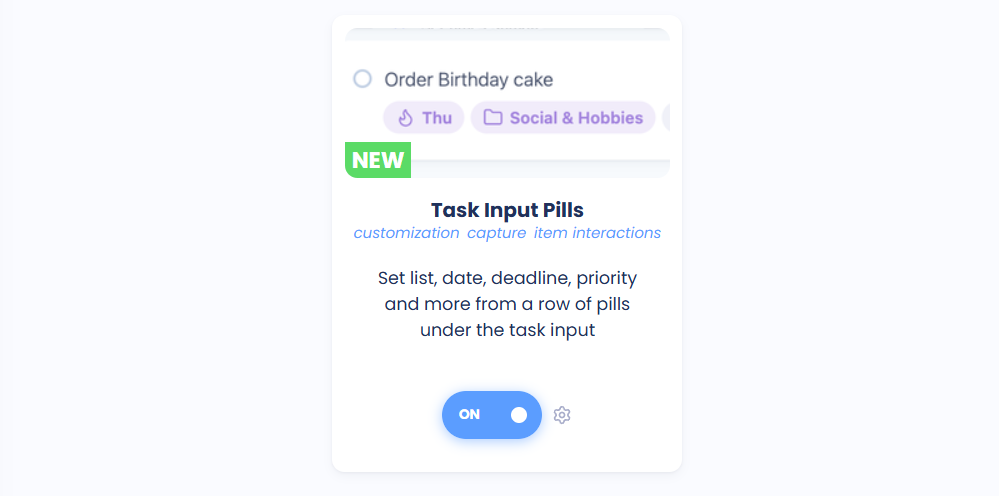
Task Input Pills adds a row of buttons ("pills") under the task title when you add or edit a task. Click a pill to set things like the list, date, deadline or labels, without needing to remember the #, @, * and + shortcuts.

Turning it on
Task Input Pills is on by default. You'll find it in your Features list in the Item Interactions group. It's for desktop and web; the mobile app has its own row of buttons when you add a task.
Using the pills
Start typing a new task, or click a task's title to edit it.
Click a pill to set that property. The pill then shows what you picked.
If you prefer typing shortcuts, those still work, and the pills update as you type.
By default you'll see List, Date, Time, Deadline, Duration, Priority, Labels, Reminders and Recur. A pill only shows when its feature is turned on, so if you don't use deadlines, you won't see the Deadline pill.
Choosing your pills
Click the cog at the end of the pill row (Edit pills). There you can:
Drag pills to change their order
Remove pills you don't use
Add more pills, like Size, Urgency, Start date, Note or Backburner
Settings
When adding a task (on by default)
When editing a task (on by default)
Only while the input is focused
Keep them on one line and scroll
Only show icons
Show pills that have a value first
To hide the pills in just one list, click the cog at the end of the pill row and switch off In this list. In your day list you can also switch off Task pills in the list's menu.