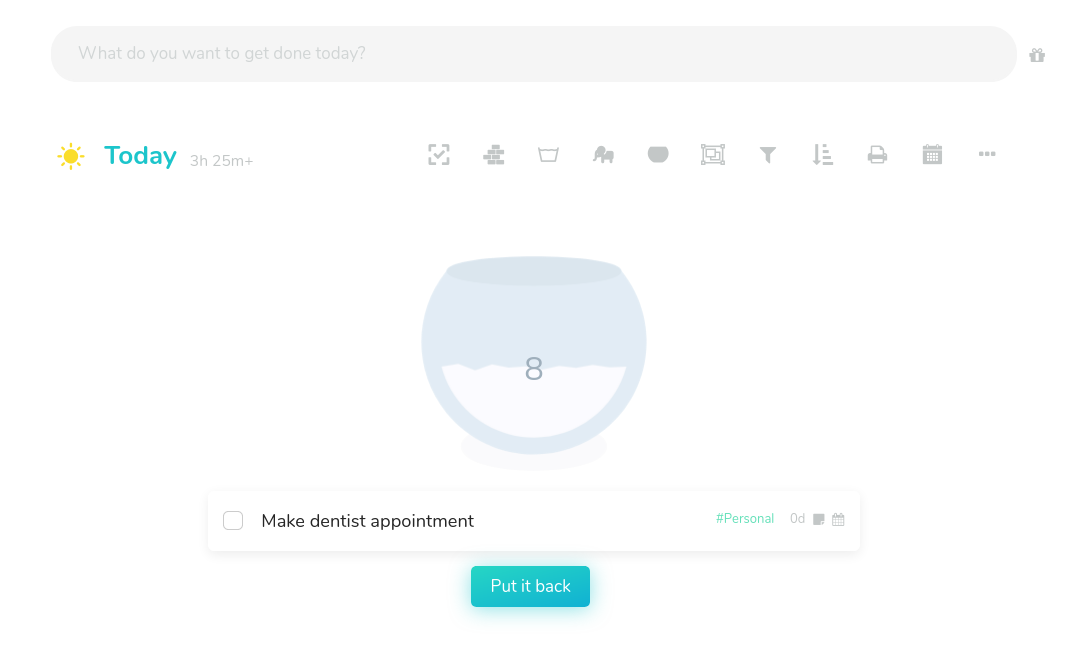
The task jar is a fun strategy that can be very helpful if you want to get through a long list of tasks for a day but you don't want to figure out the order to do it in.
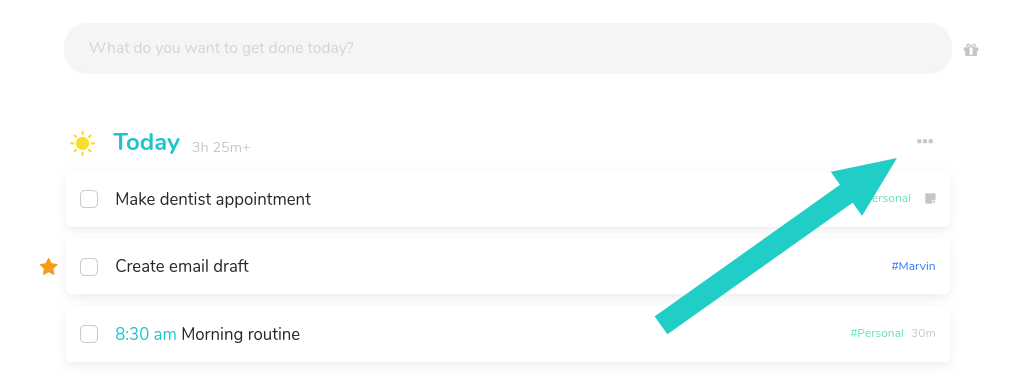
Turn this strategy on, then open the ⋯ menu at the top right of your daily to-do list (or a smart list) and click Task Jar. You can also press J.
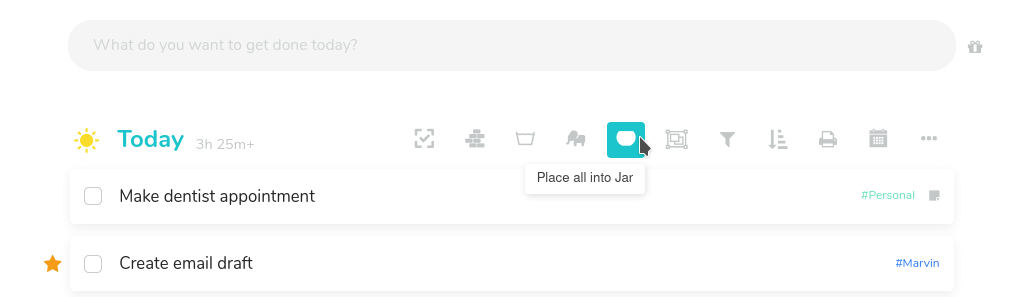
Tip: right-click Task Jar in the menu to pin it as an icon next to the dots.
When you click the jar icon, all of today's open tasks are added to a jar. You can see how many tasks are in the jar at any time.

Clicking the jar pulls out a task at random.
Don't want the task you pulled? Click Put it back to return it to the jar.
To stop, click Exit Jar in the ⋯ menu. Marvin remembers what's in your jar, so you can leave and come back to it later.
Task Jar settings
Click the cog on the jar to open its settings:
Display Jar As: SVG Drawing, Emoji or Simple Icon.
Task Display Mode: show the picked task Inline in your list, as a Single Task, or in Super Focus Mode.
Include individual tasks from projects instead of just the project: put a project's tasks into the jar one by one.
Auto-start time tracking on picked task.