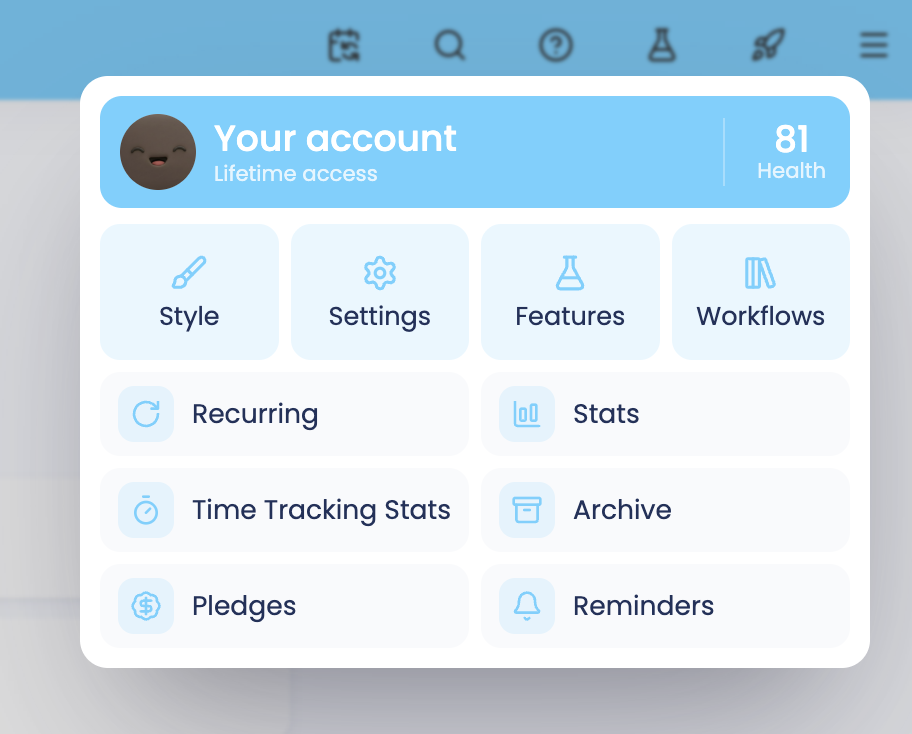
You can change how Marvin looks in the Style panel. Open the main menu (☰) and click Style. The panel opens on the right side of the screen.
Pick a theme to customize
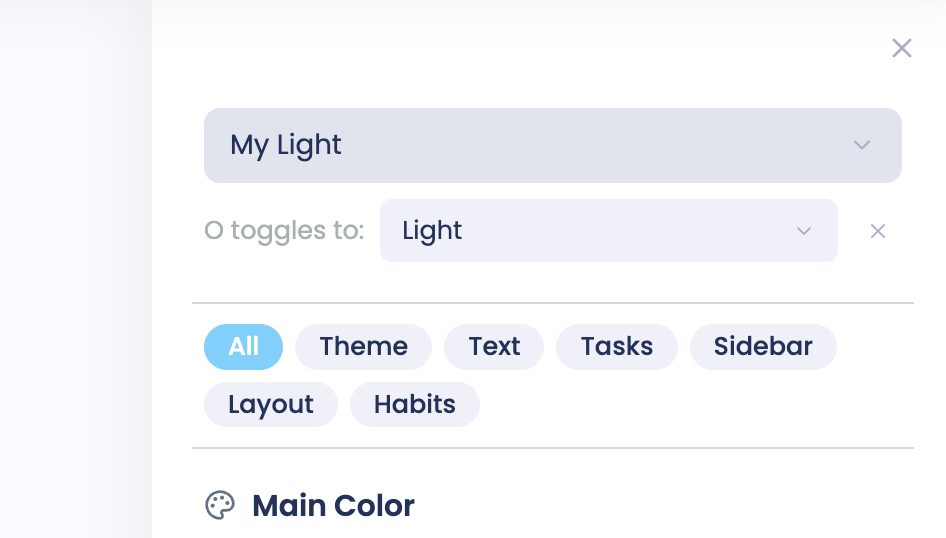
At the very top of the style sidebar you can see which theme is currently selected (My Light).
There are four Presets you can choose to start from Light, Night (Dark), Dusk (Dark) or Silver (Dark).
So one light theme, and three dark theme versions.
Switch between two themes with the O key
Click + Add toggle theme (O-key) and choose a second theme. Now you can press O on your keyboard to switch between your two themes.
This can be helpful if you want to manually decide when to switch to a dark theme at night for example.
Make a theme your own
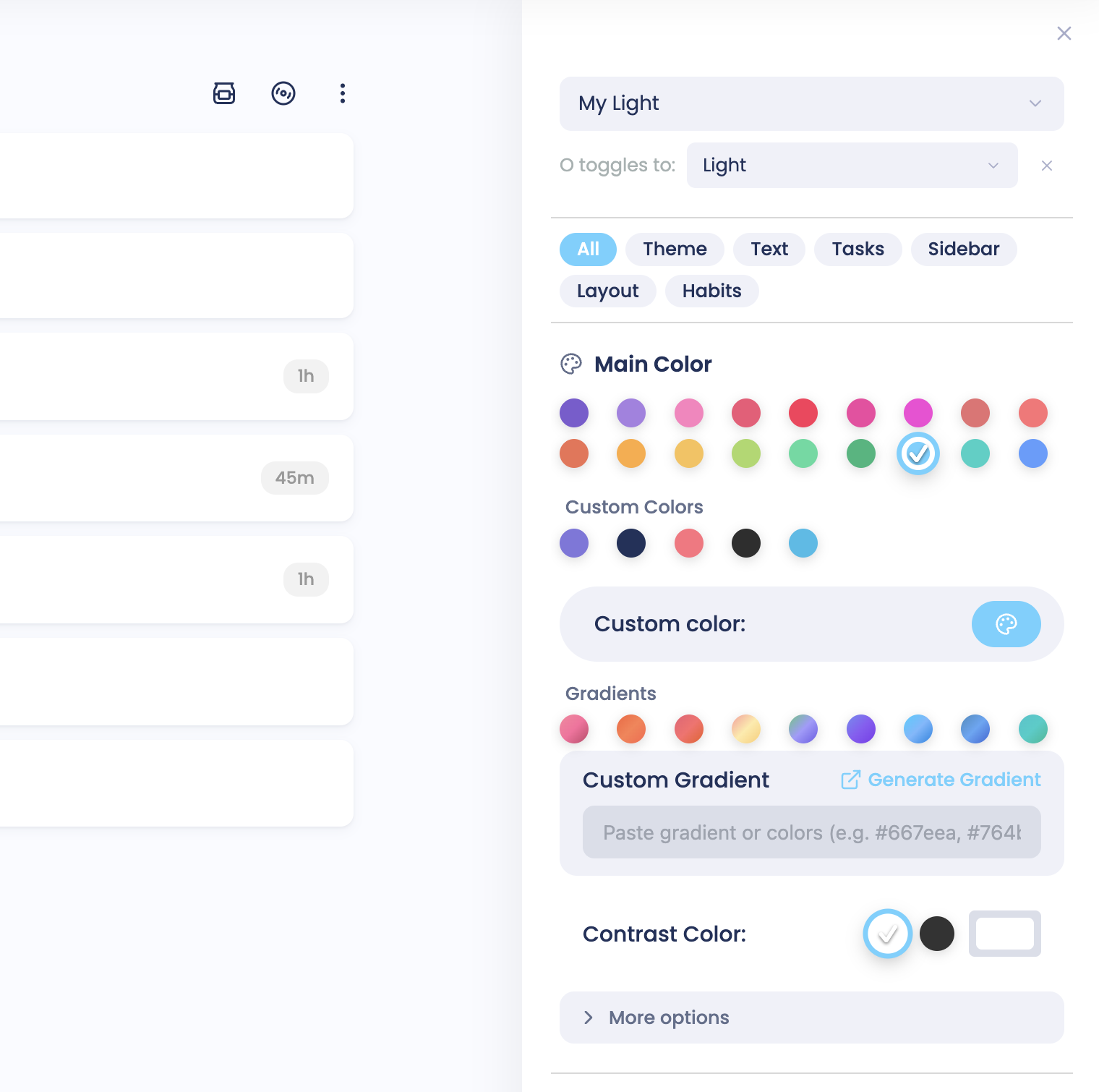
Each theme can be customized to suit your liking. As soon as you customize a preset it saves it as a new theme called "My light" or "My Night" etc.
Below the theme picker you can change the Main Color, Background, Task Styling, Text, Header, your sidebars, Labels, Layout and more. Your changes show up right away and get saved to the theme automatically.
Save and load themes
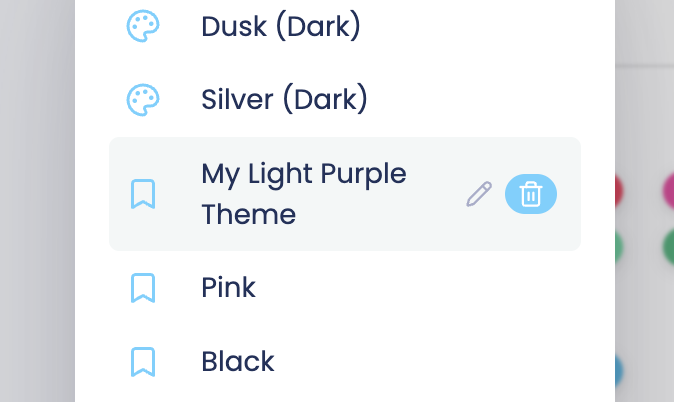
When you change a preset, Marvin saves your changes as a new theme, for example My Light. You find it in the theme list under Saved Themes. Click a saved theme to load it again. Hover over it to rename or delete it. To start a fresh theme, click Create new theme at the bottom of the list.
Automatic dark theme
In the Main Color section, click More options. Turn on Use system light/dark to follow your computer's setting, or Dark theme at sunset to switch to a dark theme after sunset.