If you want to completely reset your Marvin to a clean state, you can do a factory reset. This is useful if your database has become large and is causing performance issues (clearing weight), or if you want to start fresh.
Warning: This process deletes your local Marvin data and rebuilds it fresh. Following these steps carefully will preserve all your tasks and information.
Delete the app on your phone
Before doing a factory reset it can be useful to delete the phone app and then re-install it after the reset to make sure the database on your phone is built only with the fresh data.
How to factory reset
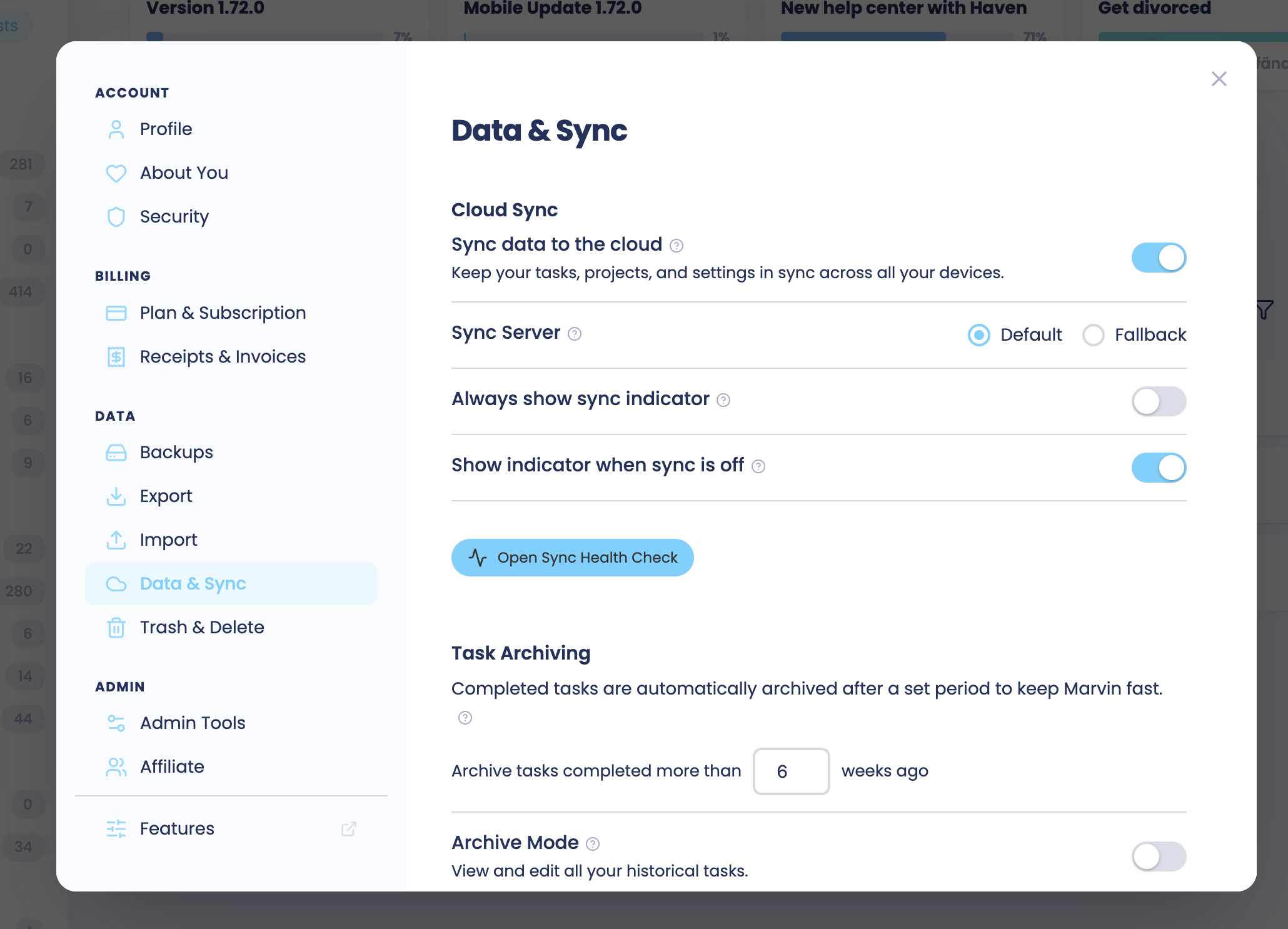
Check your sync health
Go to ☰ > Account > Data & Sync
Click Sync Health Check and make sure your data is synced to the cloud
Your tasks, projects, and settings are safe in the cloud; they won't be deleted
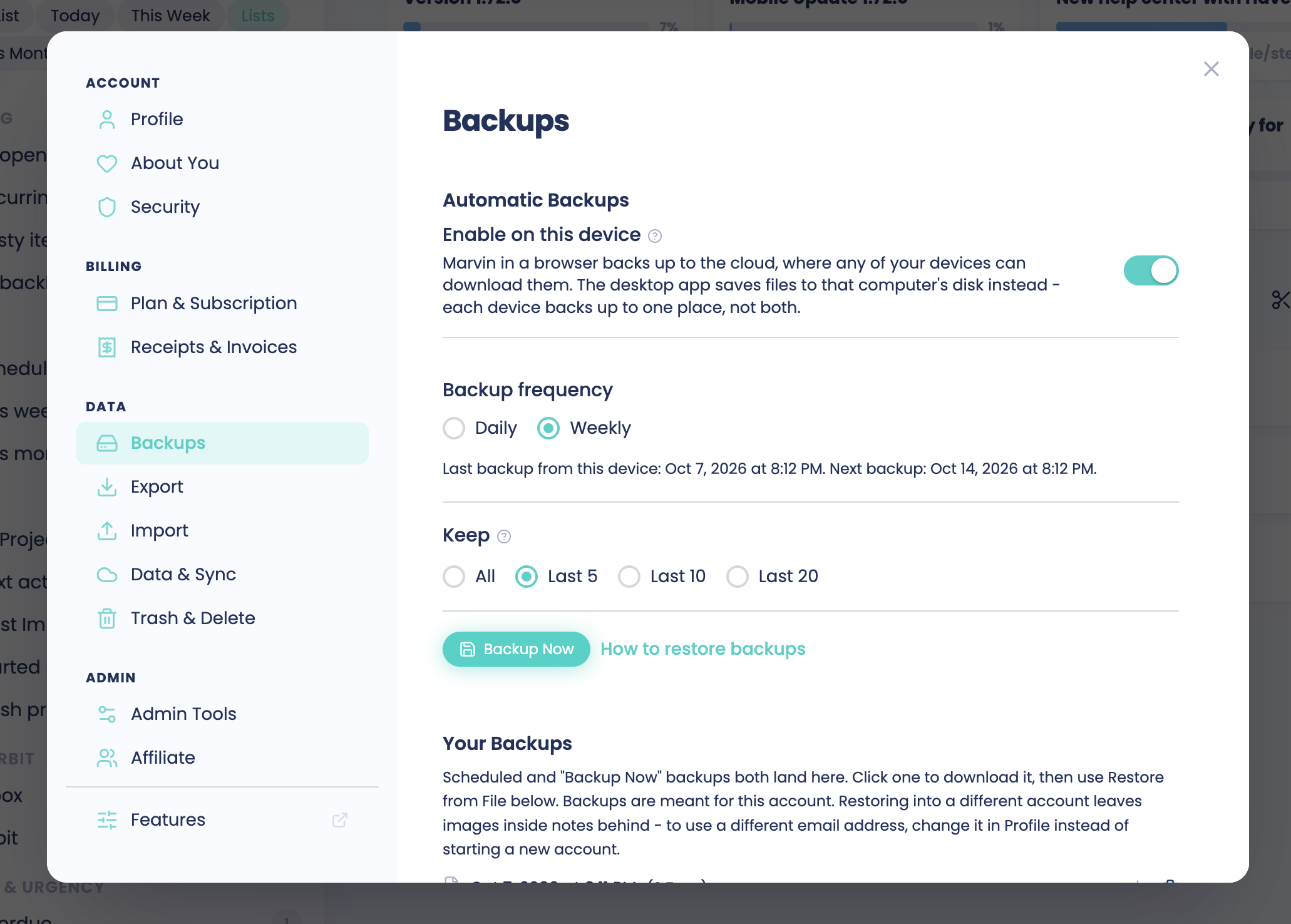
Back up your data
Go to ☰ > Account > Backups
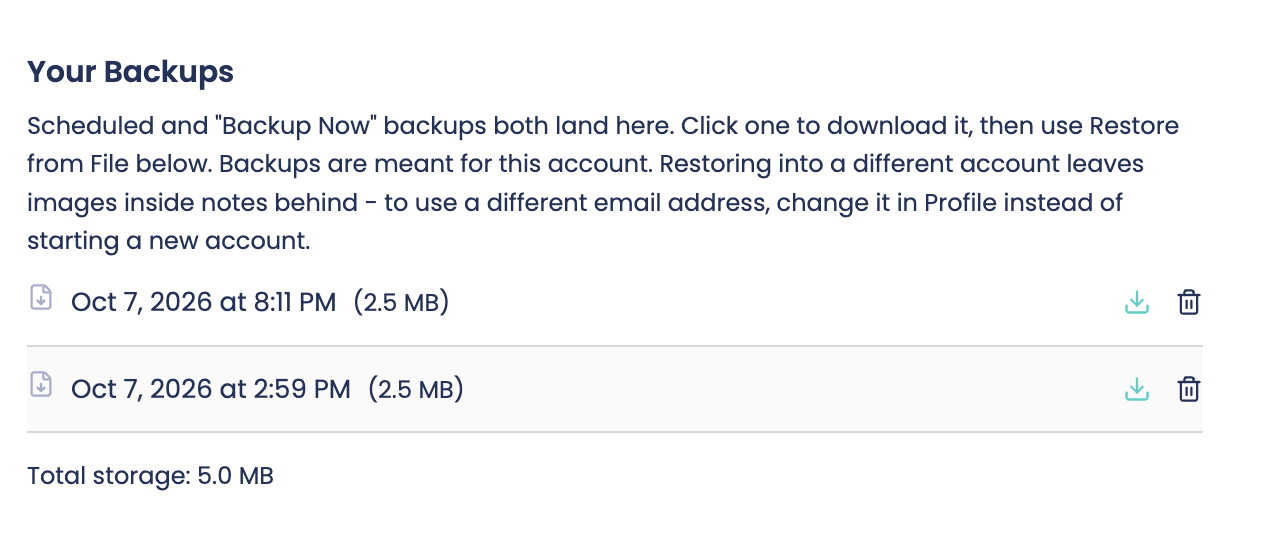
Under Create Backup, click "Create Backup", then Back up (this saves the backup straight to your computer)
Check that the backup file is saved on your computer before you continue.
Do the factory reset
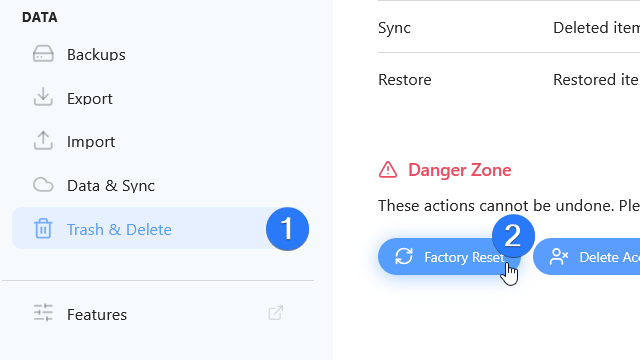
Open ☰ > Account
Open the Trash & Delete tab
Click the Factory Reset button
Wait until the account is cleaned up
The reset also saves its own backup file to your computer first, and it cancels if that can't be done.
Restore your backup
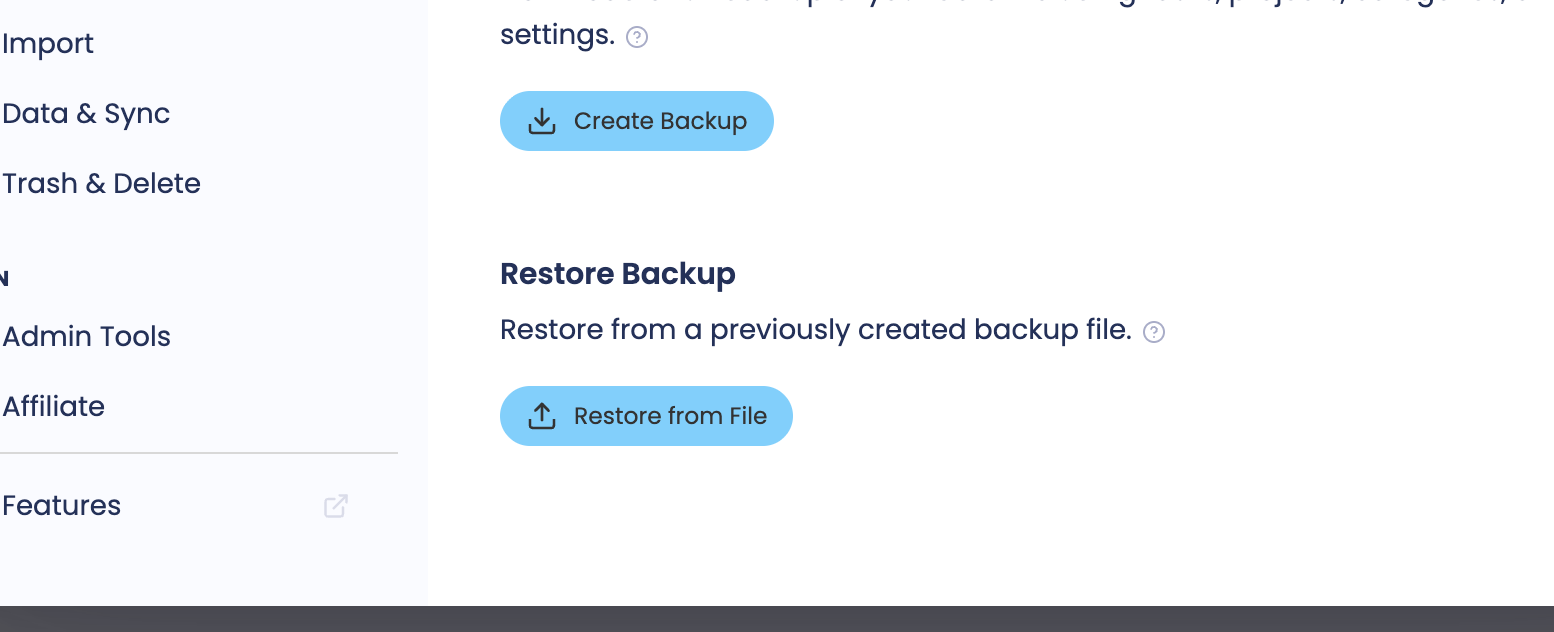
Go to ☰ > Account > Backups
Click Restore from File and upload your backup
You'll have the option to restore data from the last 6 months, last year, or all data
We recommend choosing last 6 months: this removes old completed tasks, deleted items, and archived projects from before 6 months ago, which saves significant space on your device
Any project or task that's still open will come back, so you won't lose anything active
This rebuilds your database fresh, without the accumulated bloat
After restoring, your Marvin should run more smoothly with a lighter database.
Mobile app
If you're using the mobile app, delete it from your device before you start the factory reset. This makes the process faster on mobile. Then, after you restore your backup:
Reinstall the app from the App Store (iOS) or Google Play (Android)
Sign in with your account
The app will download your fresh database
If you want to keep your tasks
If you just want to clear all your settings and keep your tasks, then delete your workflow instead.
Technical details
Doing a factory reset creates a new sync database for you and deletes your old database. It isn't possible to recover your old database from our servers, but you can restore data using a backup as described above. If you use the desktop app, you likely already have automatic backups on your computer.